Compare
What it is
A side-by-side table of 2–6 owned properties, covering deal terms, underwriting, BRRRR, market research, and scores in one view.
Why / when you'd use it
Use it when you're deciding between owned properties (for example, ranking candidates for a future BRRRR or deciding which to prioritize) and want every relevant number lined up in one table rather than switching between property pages.
Only properties that show up on your Dashboard — meaning you own them, not properties still in the Deals pipeline — can be compared this way. See Owned property in the Glossary.
Selecting properties to compare
On the Dashboard, check Compare on 2–6 property cards. A Compare N selected button appears once you've picked at least 2 (it caps at 6 — the checkbox disables on any additional card once you're at the limit).
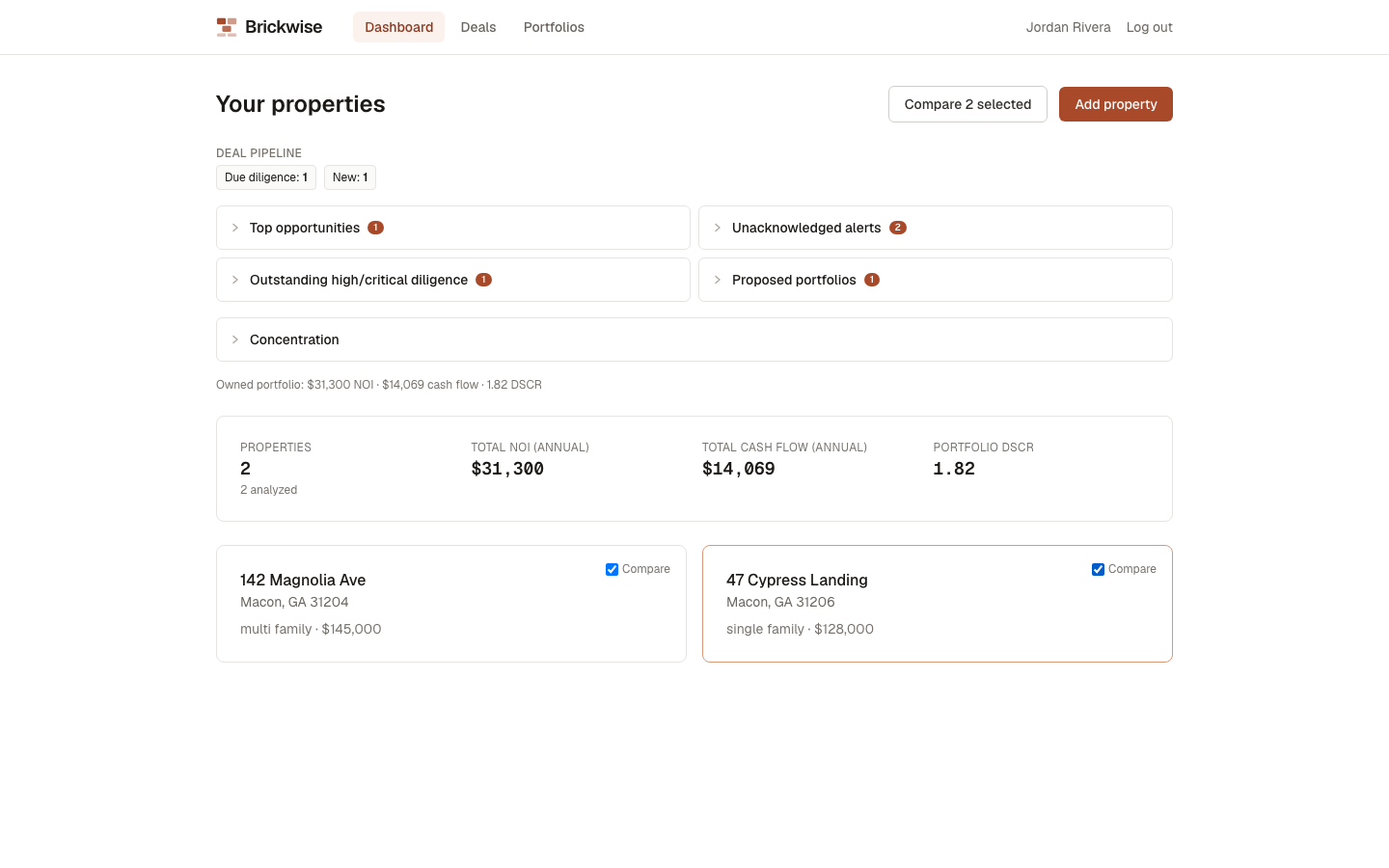
Select Compare N selected.
Reading the comparison
Use the scenario toggle (Base / Downside / Severe) at the top to see how the underwriting section changes under each stress-test scenario.
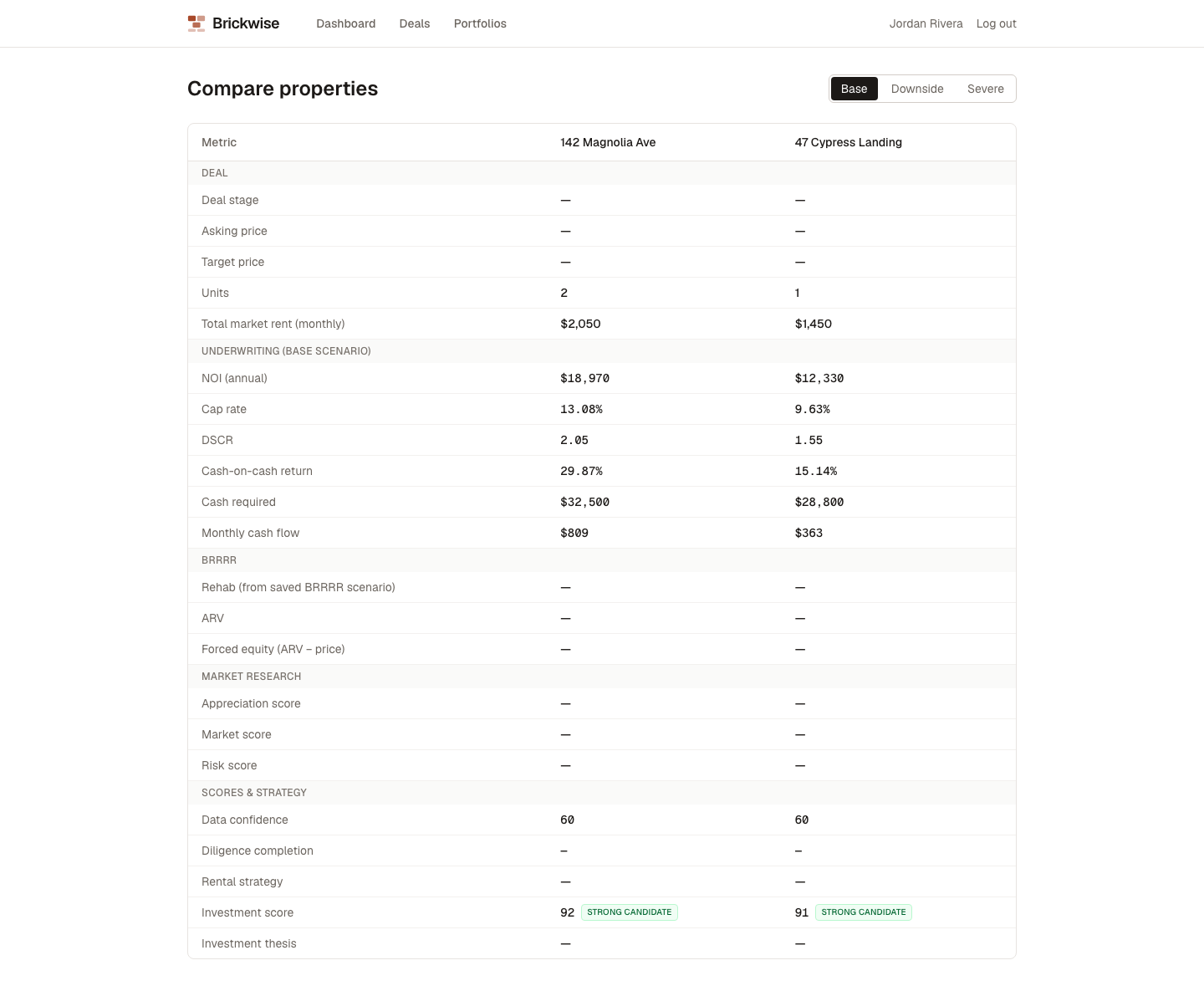
The table is grouped into sections: Deal (stage, pricing, units, rent), Underwriting (NOI, cap rate, DSCR, cash-on-cash return, cash required, monthly cash flow — for the selected scenario), BRRRR (rehab, ARV, forced equity, from a saved BRRRR scenario if one exists), Market research, and Scores & strategy (data confidence, diligence completion, rental strategy, investment score, and thesis). Any property missing the underlying data for a row shows a dash rather than a guessed number, with a note under its column explaining why.
Known UI issue: the scenario toggle here only offers Base, Downside, and Severe — Upside (available on a single deal's own stress test) isn't an option on this page. See Limits & Expectations.
What's next
You've now covered every major feature. Not sure what a term in the comparison table means? Check the Glossary.