Portfolios
What it is
A named group of properties — owned or still in your deal pipeline — analyzed and stress-tested together. See Portfolio (Proposed / Scenario) in the Glossary for what the two types mean (functionally, they work identically).
Why / when you'd use it
Use a portfolio whenever you want to see combined numbers across more than one property — total NOI, blended DSCR, how concentrated you are in one city or strategy — rather than looking at properties one at a time.
Viewing your portfolios
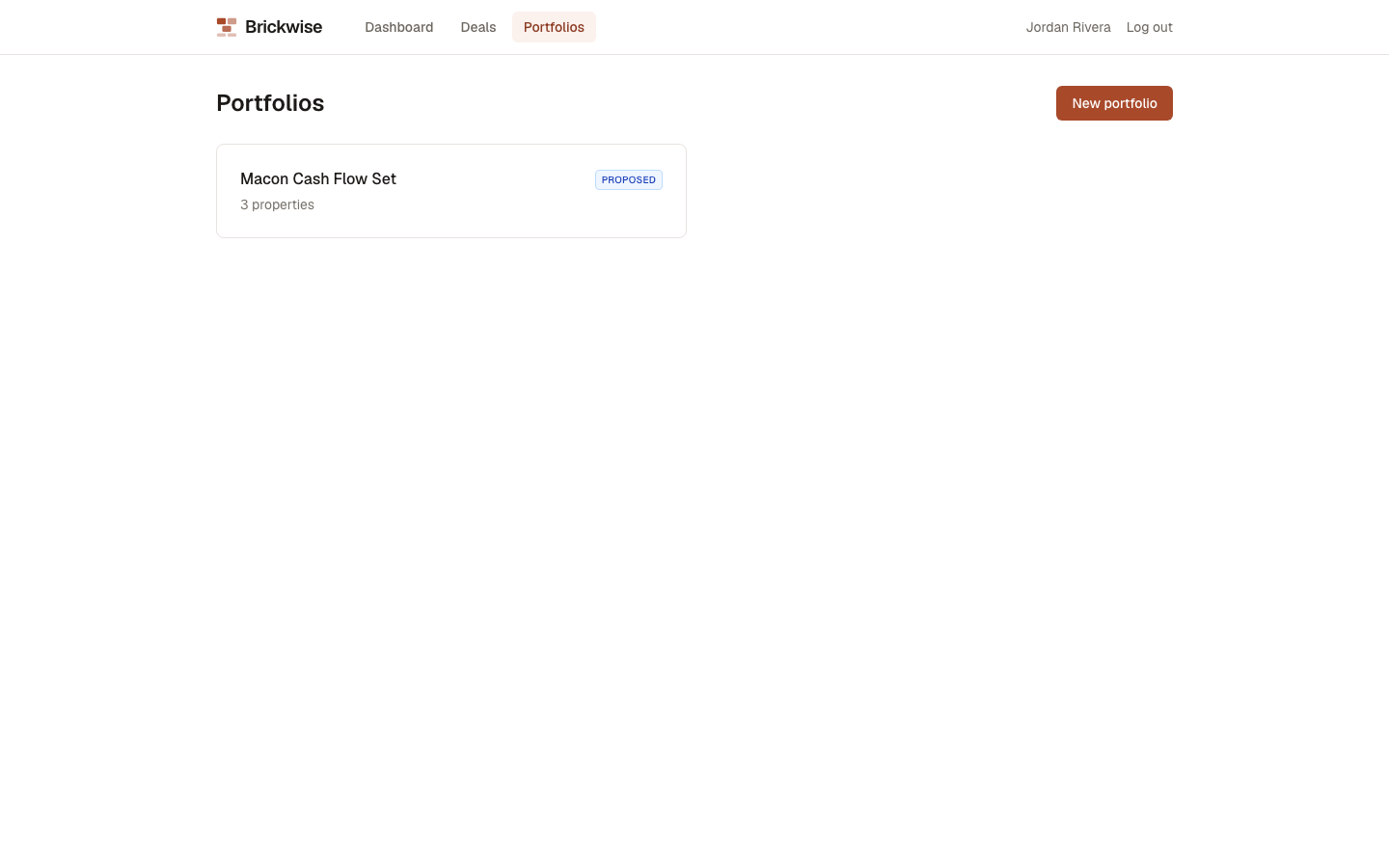
The Portfolios page lists every portfolio you've created, with its type badge and property count.
Creating a portfolio
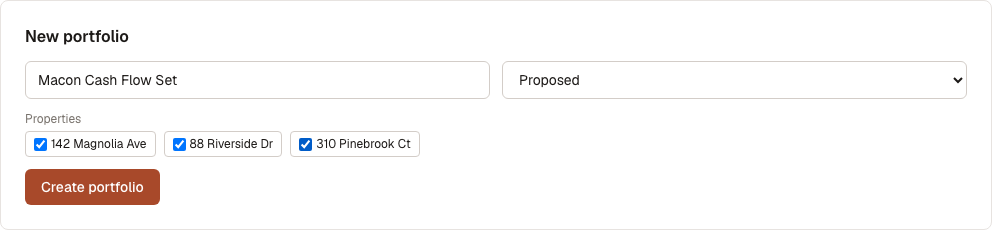
- Select New portfolio.
- Enter a Portfolio name.
- Choose a Type: Proposed or Scenario.
- Check every property you want to include.
- Select Create portfolio.
Viewing a portfolio
Opening a portfolio shows:
- Its type, changeable via a dropdown right on the page (this updates immediately — there's no separate save step)
- Members — toggle any property's checkbox to add or remove it, which also applies immediately
- Summary — combined Properties count, Total basis, Total NOI (annual), Total cash flow (annual), and Portfolio DSCR
- Concentration — bar charts showing how your basis is spread across geography, property type, and investment thesis
- Stress test — select Run portfolio stress test to see combined cash flow under each scenario, plus which single property is the portfolio's weakest and strongest link
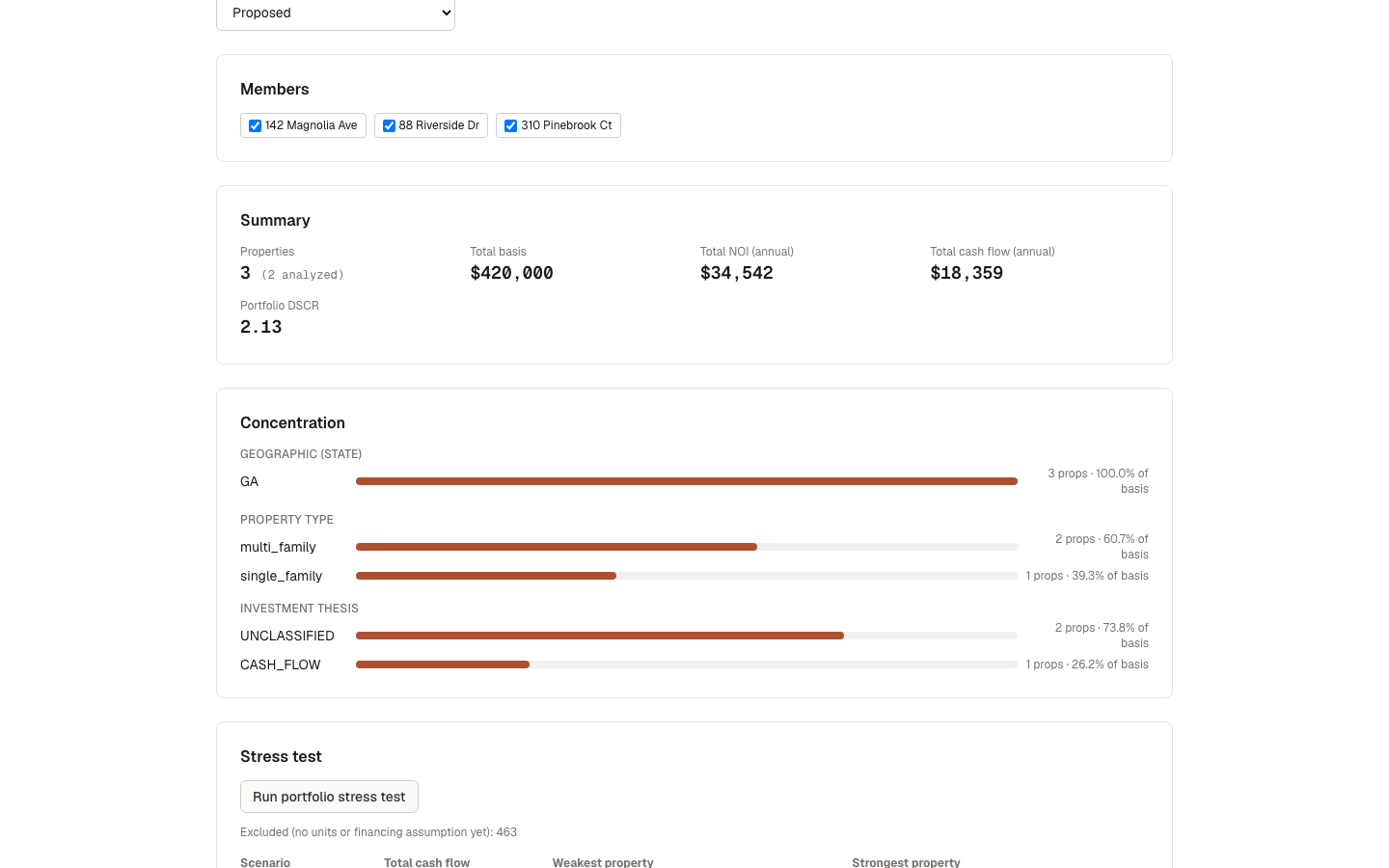
Properties with no units or underwriting assumption yet are automatically excluded from the stress test and noted separately, rather than treated as zero.
Select Delete (top of the page) to remove the portfolio — this asks for confirmation and does not delete the underlying properties.
What's next
- Compare — a more detailed side-by-side view, capped at 6 properties, without the grouping/stress-test features