Getting Started
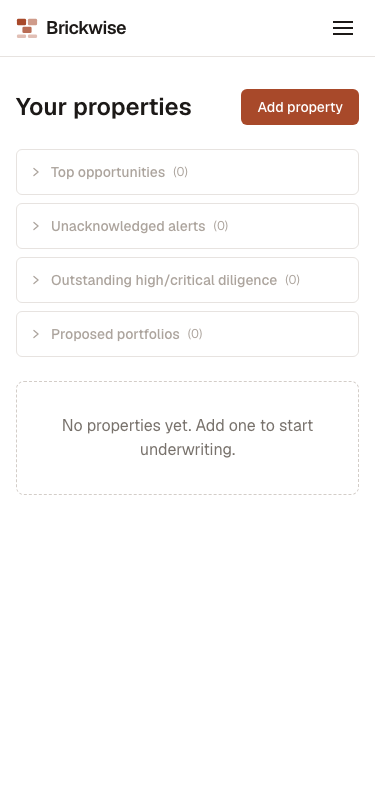
This walks through everything from your first visit to Brickwise through running your first underwriting analysis. It works the same way on desktop and mobile — screenshots below show both where the layout differs.
1. Create an account
Visit Brickwise and you'll land on the welcome page.
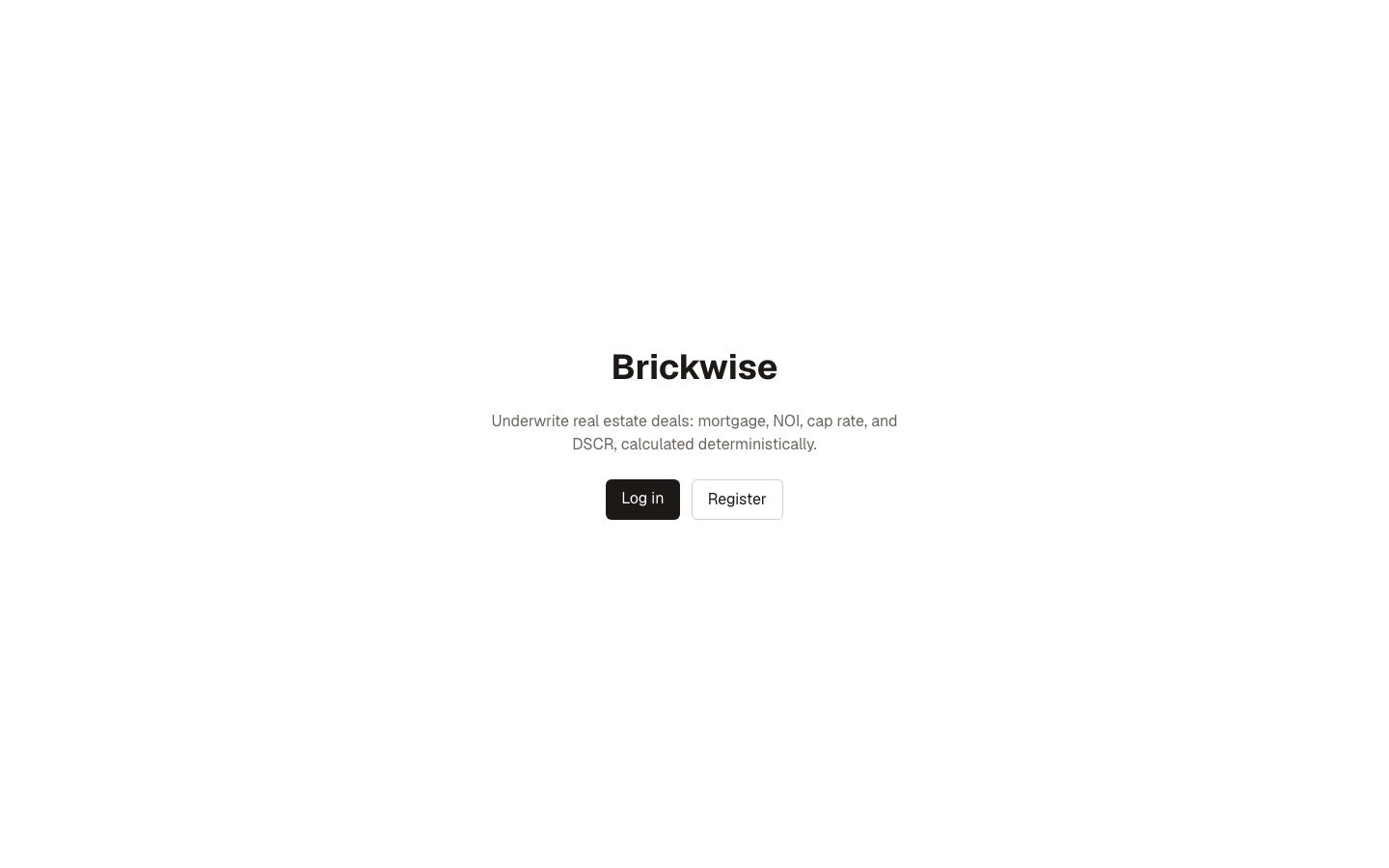
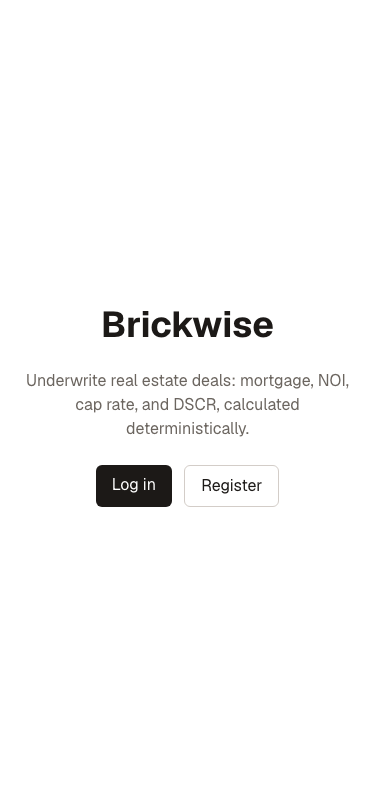
Select Register.
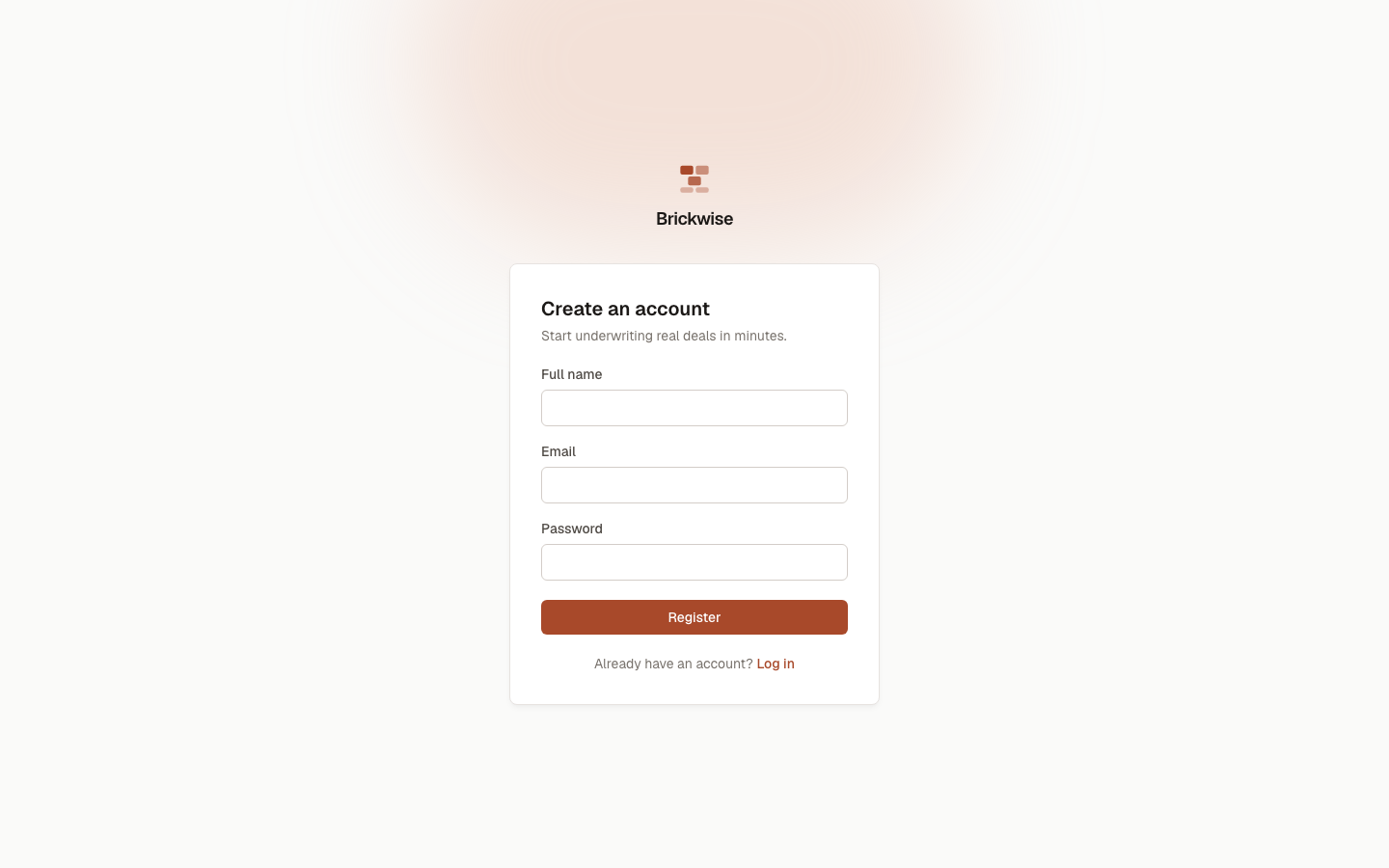
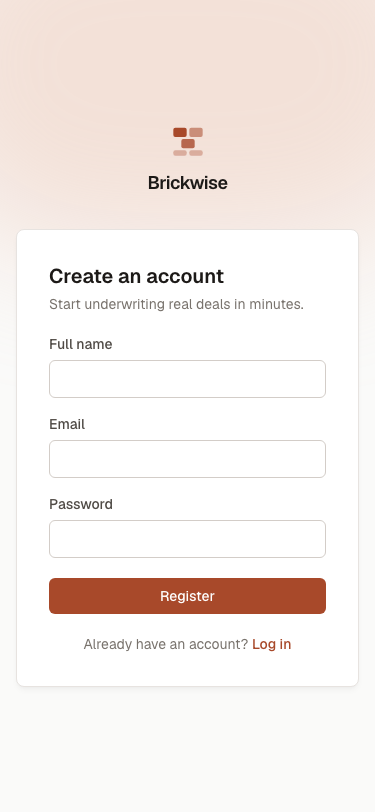
Fill in:
- Full name
- Password — must be at least 8 characters. (This minimum isn't shown on the page itself — see Known UI issue below.)
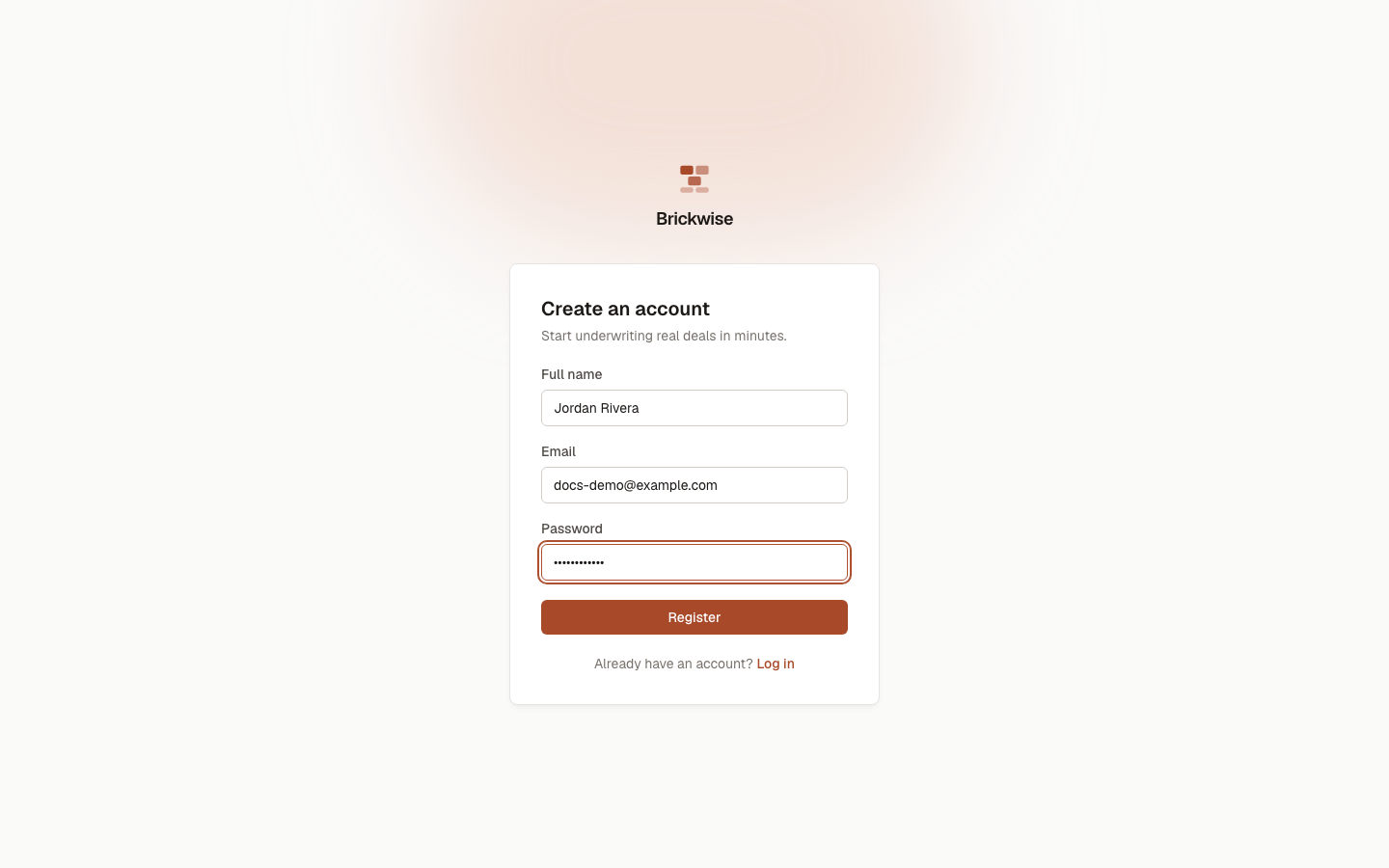
Select Register. You're logged in immediately and taken to your Dashboard, with a banner at the top reminding you to verify your email (a link was sent to the address you registered with). Every part of the app works normally whether or not you've verified yet — select the link in that email when convenient, or Resend email on the banner if it never arrived.
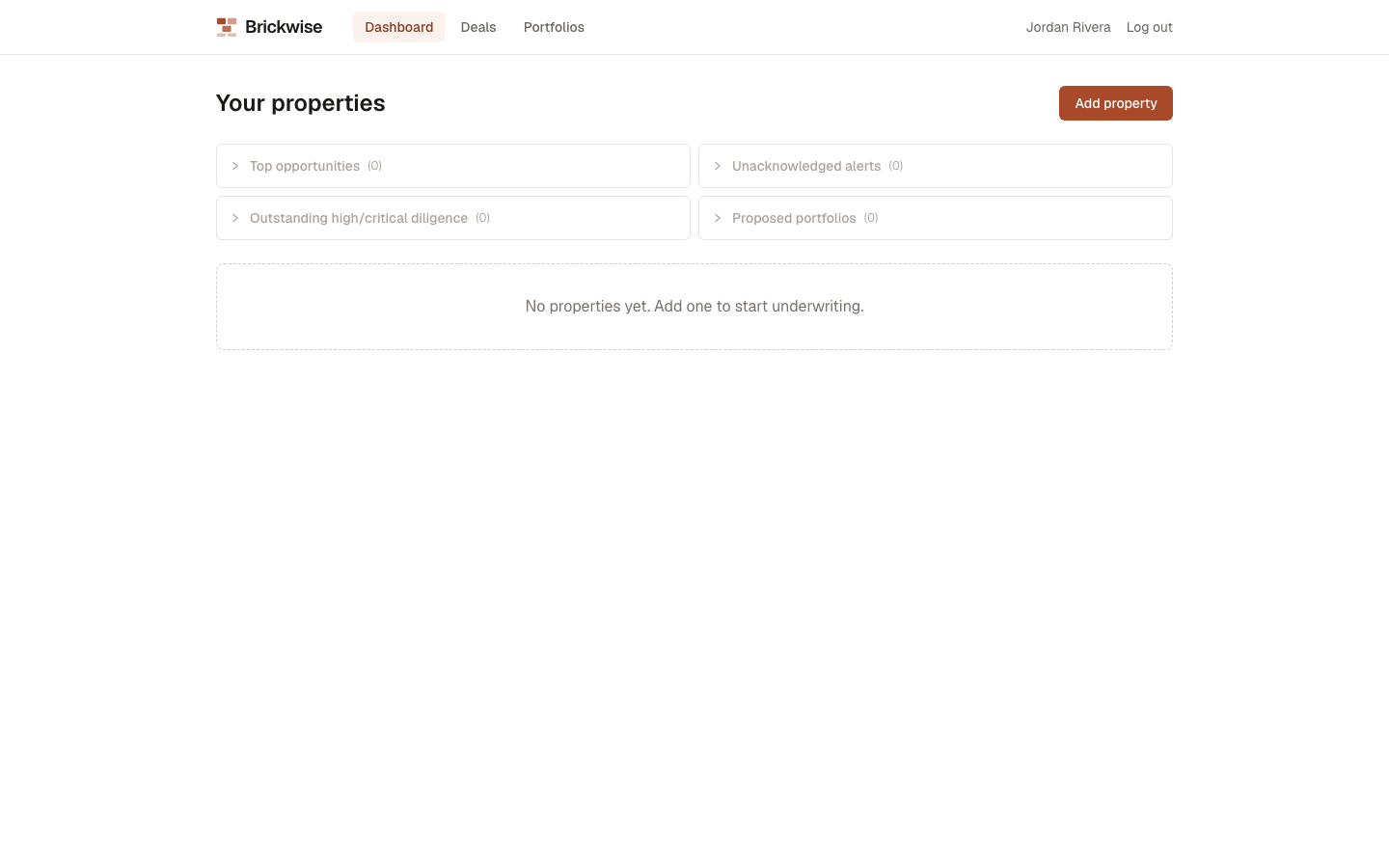
Already have an account? Use Log in instead, with your email and password — or Forgot password? on that same page if you don't remember it.
Finding your way around on mobile
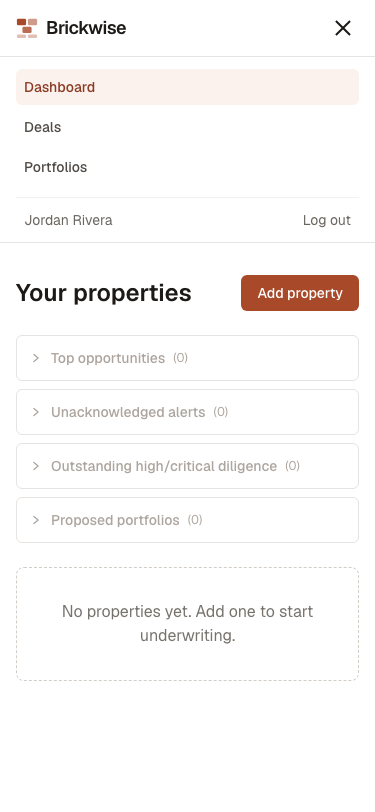
Below the tablet breakpoint, the top navigation collapses into a hamburger menu (the three-line icon, top right). Tap it to reach Dashboard, Deals, and Portfolios, and to log out.
2. Add your first property
From the Dashboard, select Add property.
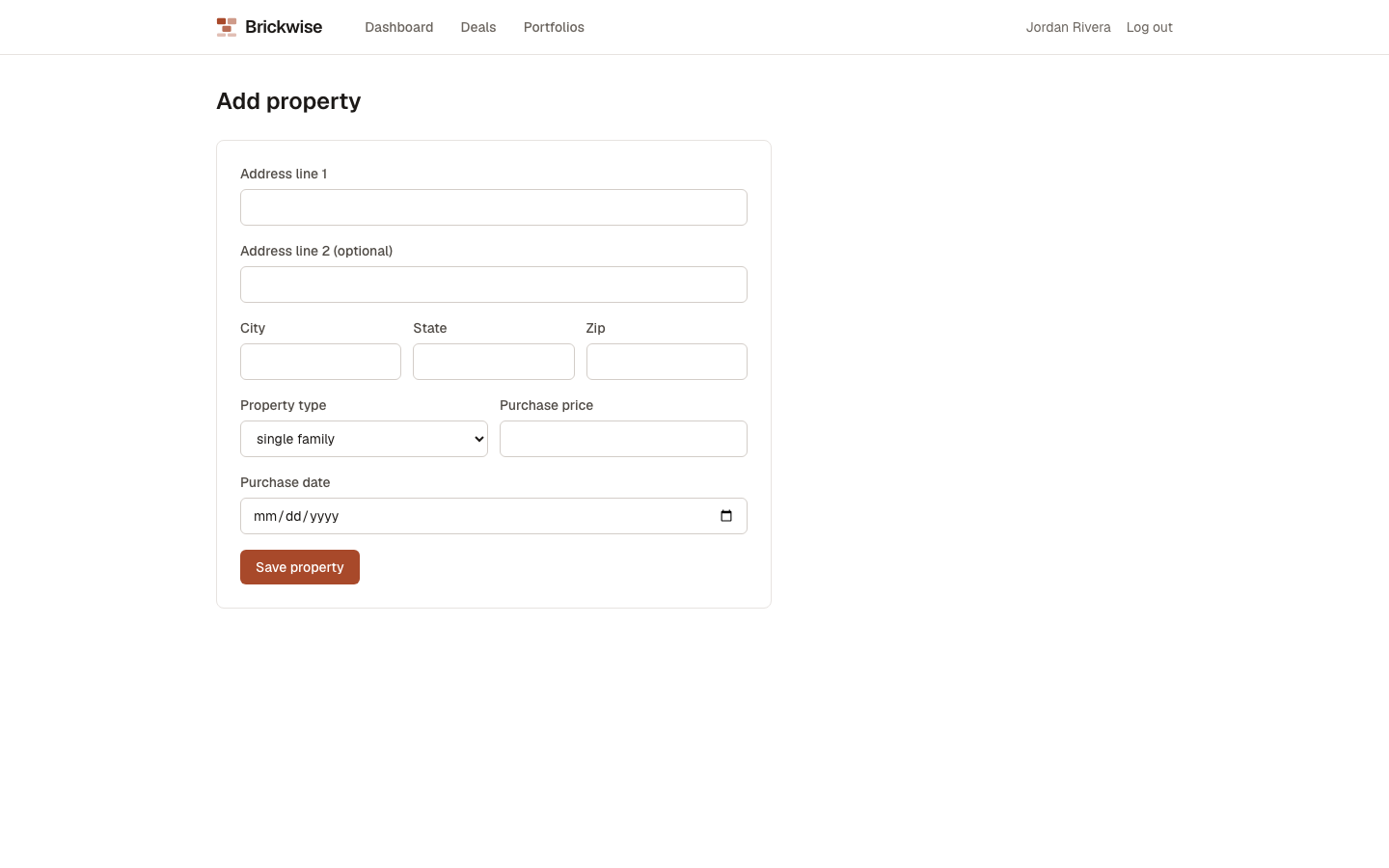
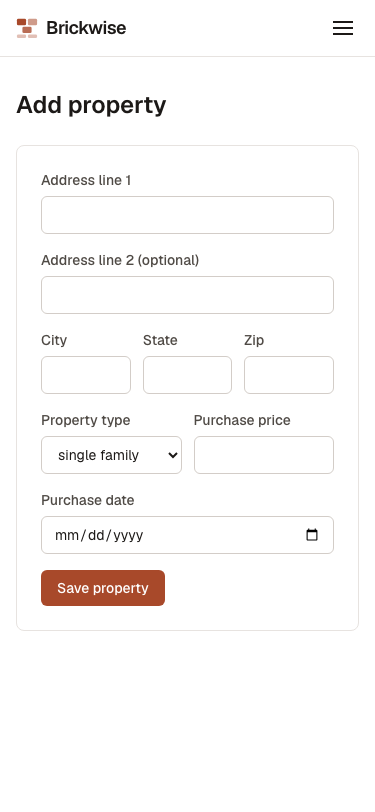
Fill in the property's basics:
- Address line 1, and optionally Address line 2
- City, State, Zip
- Property type — single family, multi family, condo, townhouse, or other
- Purchase price
- Purchase date — can't be in the future
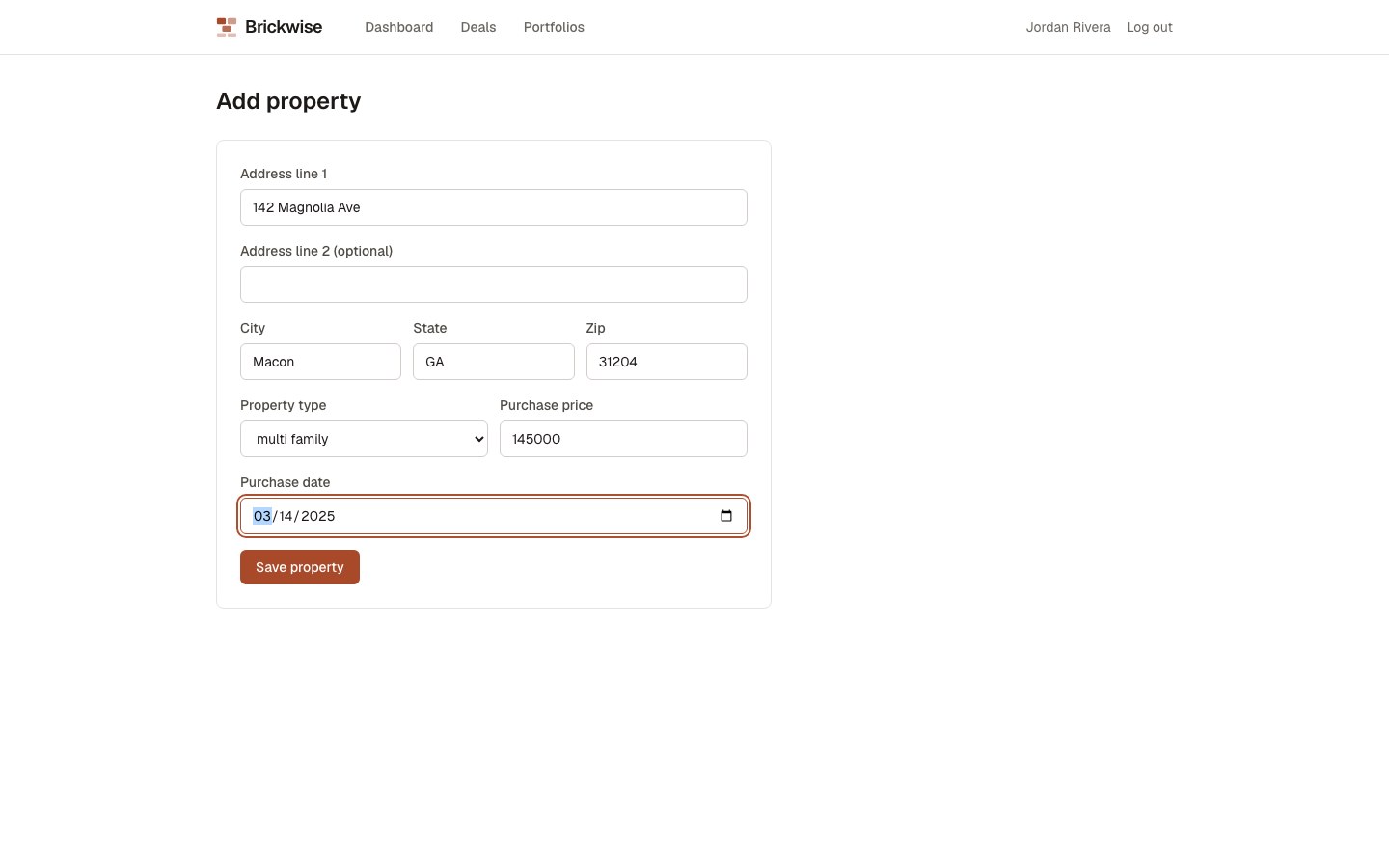
Select Save property. You'll land on the property's detail page.
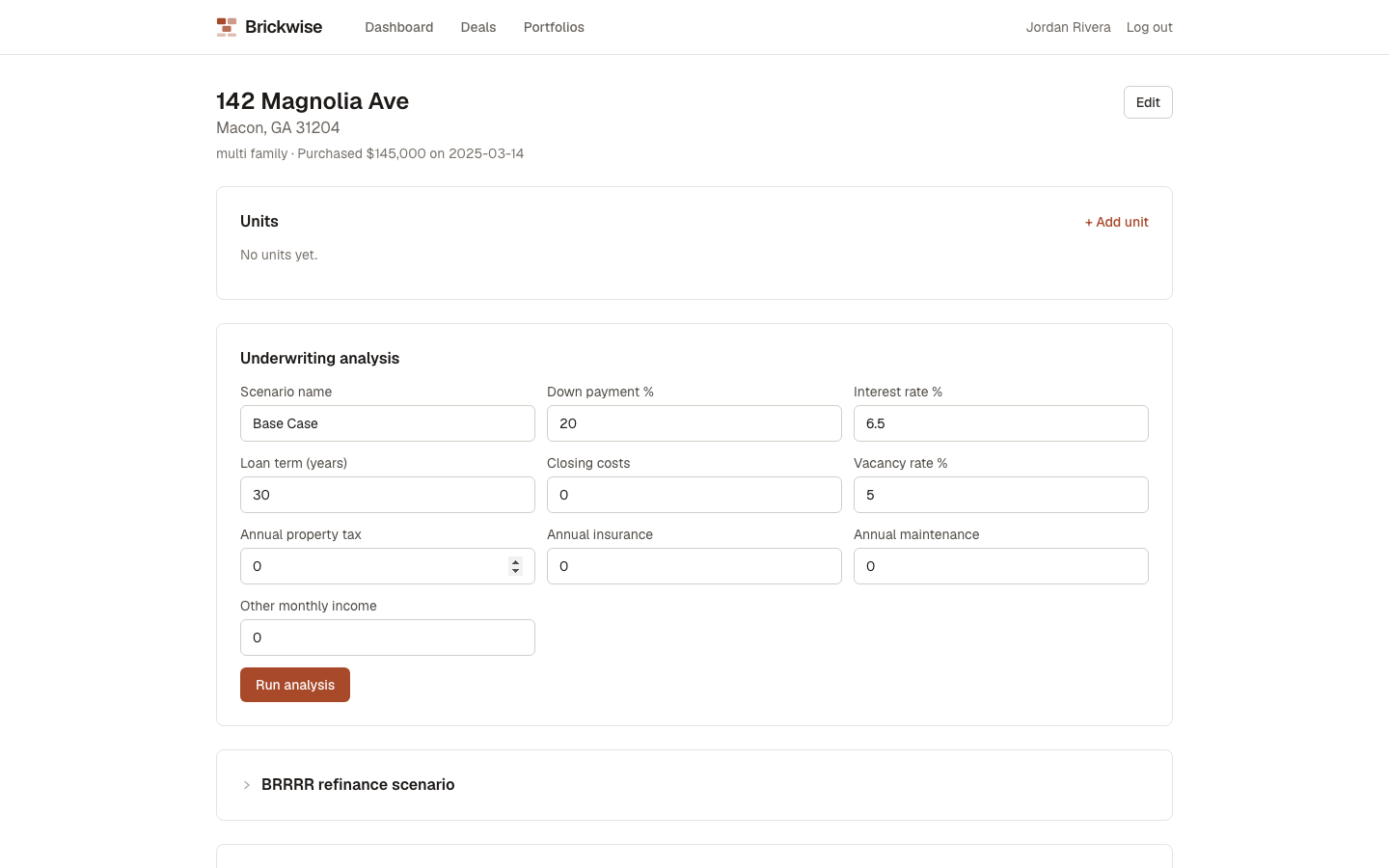
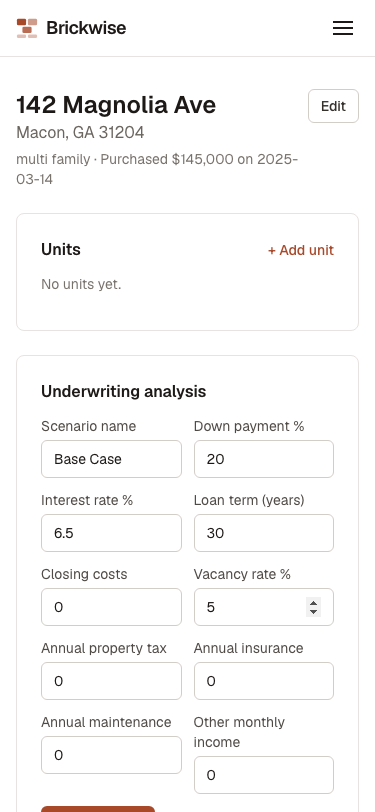
This page is where you'll add units, run underwriting, model BRRRR/STR scenarios, and ask Ezrah about this property — see the Properties and Underwriting Analysis guides for the next steps.
3. What's next
- Add units and run your first analysis — Properties and Underwriting Analysis
- Start tracking a deal you're evaluating (not yet owned) — Deals Pipeline
- Not sure what a term means? Check the Glossary — every metric and status is defined there.